
AI Analytics Dashboard & Deep Work Analysis
New AI Analytics Dashboard with visual productivity insights, plus AI Export for deep work analysis. Track context switches, productivity scores, and activity patterns in a beautiful dashboard view.
#AI Analytics Dashboard & Deep Work Analysis
We're excited to announce a powerful new AI Analytics Dashboard that gives you instant visual insights into your productivity patterns, plus an AI Export capability for deeper analysis!
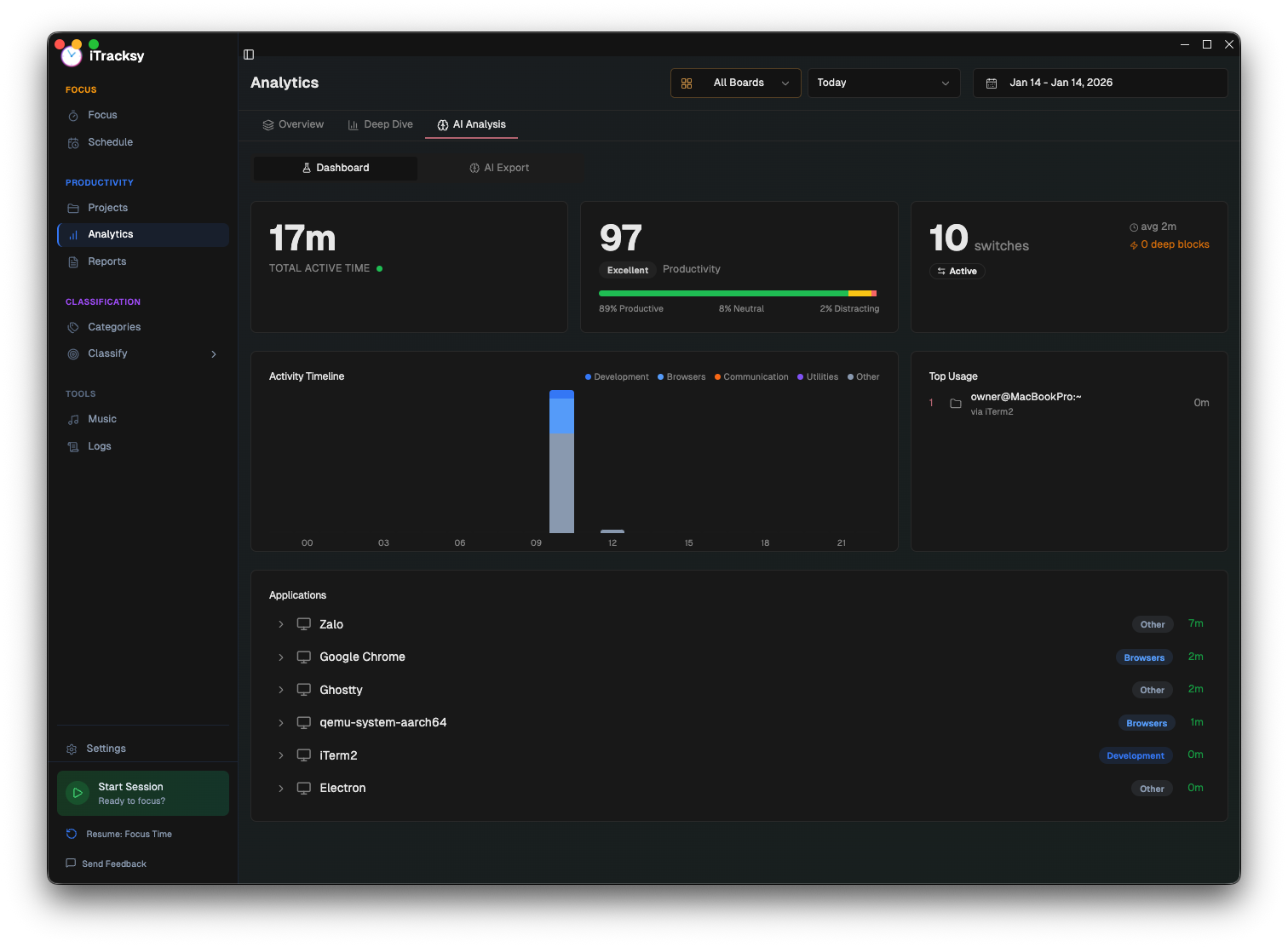
#NEW: AI Analytics Dashboard
#At-a-Glance Productivity Metrics
The new Dashboard view shows you everything you need to know about your workday:
| Metric | What It Shows |
|---|---|
| Total Active Time | Your total tracked time for the period |
| Productivity Score | 0-100 score with Excellent/Good/Average labels |
| Productivity Breakdown | Visual bar showing Productive/Neutral/Distracting percentages |
| Context Switches | Total app switches with average time between switches |
| Deep Blocks | Number of sustained focus periods (25+ minutes) |
#Activity Timeline Chart
See exactly how your day breaks down by category:
- Development (blue) - IDEs, terminals, code editors
- Browsers (light blue) - Chrome, Safari, Firefox, Arc
- Communication (orange) - Slack, Teams, Discord, email
- Utilities (purple) - System apps, Finder, settings
- Other (gray) - Everything else
The stacked bar chart shows hourly activity distribution, so you can spot patterns like "I'm most productive in the morning" or "I get interrupted a lot after lunch."
#Top Usage & Applications
- Top Usage: Your most-used folders (projects) and domains
- Applications: Expandable list of every app with time spent and category
#AI Export for Deeper Analysis
#The Problem: Invisible Productivity Killers
Research shows that context switching is one of the biggest threats to deep work. According to studies:
- It takes an average of 23 minutes to fully regain focus after an interruption
- Working in a state of constant switching can lower functional IQ by 10-15 points
- Knowledge workers spend their days jumping between apps, creating fragmented workflows
But until now, you couldn't easily quantify these patterns or get AI help analyzing them.
#What's New: AI Export for Deep Work Analysis
#Access the Feature
Navigate to Reports and click the new AI Export button with the purple brain icon.
#Choose Your Export Type
| Export Type | Best For | File Size |
|---|---|---|
| Compact | LLM context windows, quick analysis | Smaller |
| Full | Detailed investigation, data science | Larger |
The Compact mode omits individual activity logs while keeping all computed metrics - perfect for pasting into ChatGPT, Claude, or other AI assistants.
#What Gets Exported
#Context Switch Detection
Every time you switch between apps, we detect and classify it:
| Switch Type | Description | Cognitive Impact |
|---|---|---|
| Macro | Different app types (IDE to Zoom) | High |
| Micro | Quick switch under 30 seconds | Low |
| Tab | Browser tab cycling | Variable |
| Interruption | Switch to Slack, Teams, etc. | High |
#Focus Streaks
We identify continuous time blocks in the same app (threshold: 5+ minutes). Your longest focus streak tells you when you achieved true deep work.
#Session Metrics
For each focus session:
- Productivity Score (0-100)
- Context Switch Count
- Longest Focus Streak
- Unique Apps Used
- Average Activity Duration
#Daily Stats
Aggregated insights for trend analysis:
- Deep Work Blocks: Sessions over 25min with fewer than 3 macro switches
- Total Context Switches
- Top Apps by Duration
- Top Categories
- Productivity Score
#Sample AI Prompts
Once you have your export, try these prompts with your favorite AI assistant:
#Pattern Analysis
"Analyze my deep work patterns and identify when I'm most productive. Here's my data: [paste JSON]"
#Context Switching Audit
"What are my biggest context switching triggers and how can I reduce them? Here's my productivity data: [paste JSON]"
#Weekly Review
"Compare my productivity across different days and suggest improvements based on this data: [paste JSON]"
#Flow State Investigation
"Identify my focus streaks and what apps help me stay in flow state. Data: [paste JSON]"
#Personalized Recommendations
"Based on my work patterns, create a daily schedule that maximizes my deep work time: [paste JSON]"
#Export Data Structure
Here's what the AI-ready export looks like:
{
  "exportedAt": 1736784000000,
  "dateRange": {
    "startDate": "2026-01-06",
    "endDate": "2026-01-13"
  },
  "summary": {
    "totalSessions": 45,
    "totalFocusSessions": 38,
    "totalFocusTimeSeconds": 86400,
    "totalContextSwitches": 234,
    "averageProductivityScore": 72,
    "deepWorkBlocksCount": 12,
    "longestFocusStreakSeconds": 3600
  },
  "dailyStats": [
    {
      "date": "2026-01-13",
      "totalFocusTimeSeconds": 14400,
      "contextSwitchCount": 28,
      "deepWorkBlocksCount": 2,
      "productivityScore": 78,
      "topApps": [
        { "app": "VS Code", "duration": 7200, "rating": 1 },
        { "app": "Chrome", "duration": 3600, "rating": null }
      ]
    }
  ],
  "sessions": [
    {
      "id": "abc123",
      "isFocusMode": true,
      "contextSwitchCount": 5,
      "longestFocusStreakSeconds": 1800,
      "productivityScore": 85,
      "contextSwitches": [
        {
          "timestamp": 1736780000000,
          "fromApp": "VS Code",
          "toApp": "Slack",
          "switchType": "interruption"
        }
      ]
    }
  ]
}#Why This Matters
Traditional time tracking tells you what you did. AI Export tells you how you worked.
With this data, AI can help you:
- Identify patterns you can't see yourself
- Quantify the cost of interruptions
- Optimize your schedule based on actual data
- Track improvement over time
- Make evidence-based changes to your workflow
#The Science Behind It
This feature is built on research from:
- Cal Newport's Deep Work: Sustained focus creates new value
- Sophie Leroy's Attention Residue: Switching leaves cognitive debris
- Gloria Mark's Interruption Studies: 23-minute recovery time finding
We've turned these insights into measurable metrics you can act on.
#How to Get Started
- Track normally for at least a week
- Go to Reports > AI Export
- Select your date range
- Choose Compact for AI chat, Full for detailed analysis
- Click Generate Export
- Download JSON or copy to clipboard
- Paste into your AI assistant with one of the prompts above
#Update Now
This update is available now! Your app will auto-update, or you can download the latest version from our website.
We'd love to hear what insights you discover with AI Export!
Have questions or feedback? Join our community or reach out directly. Your input shapes the future of iTracksy!
Happy deep working!